Preparing and Submitting Gaussian Calculations
After constructing and editing a molecular structure in GaussView, the next step is to prepare a Gaussian calculation. GaussView provides a graphical interface that automatically generates the required Gaussian input file, allowing users to configure computational methods and calculation types without manually writing Gaussian keywords.
Almost every Gaussian calculation follows the same general workflow:
Build Molecule
      │
      ▼
Calculation Setup
      │
      ▼
Select Job Type
      │
      ▼
Choose Method
      │
      ▼
Choose Basis Set
      │
      ▼
Specify Charge & Multiplicity
      │
      ▼
Submit Gaussian Job
      │
      ▼
Analyze Results
The only difference between various calculations is the Job Type selected during the setup.
Opening the Gaussian Calculation Setup Window
Once the molecular structure has been completed,
- Click Calculate from the menu bar.
- Select Gaussian Calculation Setup.
This opens the Gaussian Calculation Setup window, where all computational parameters are specified before submitting the calculation.
Gaussian Calculation Setup Window
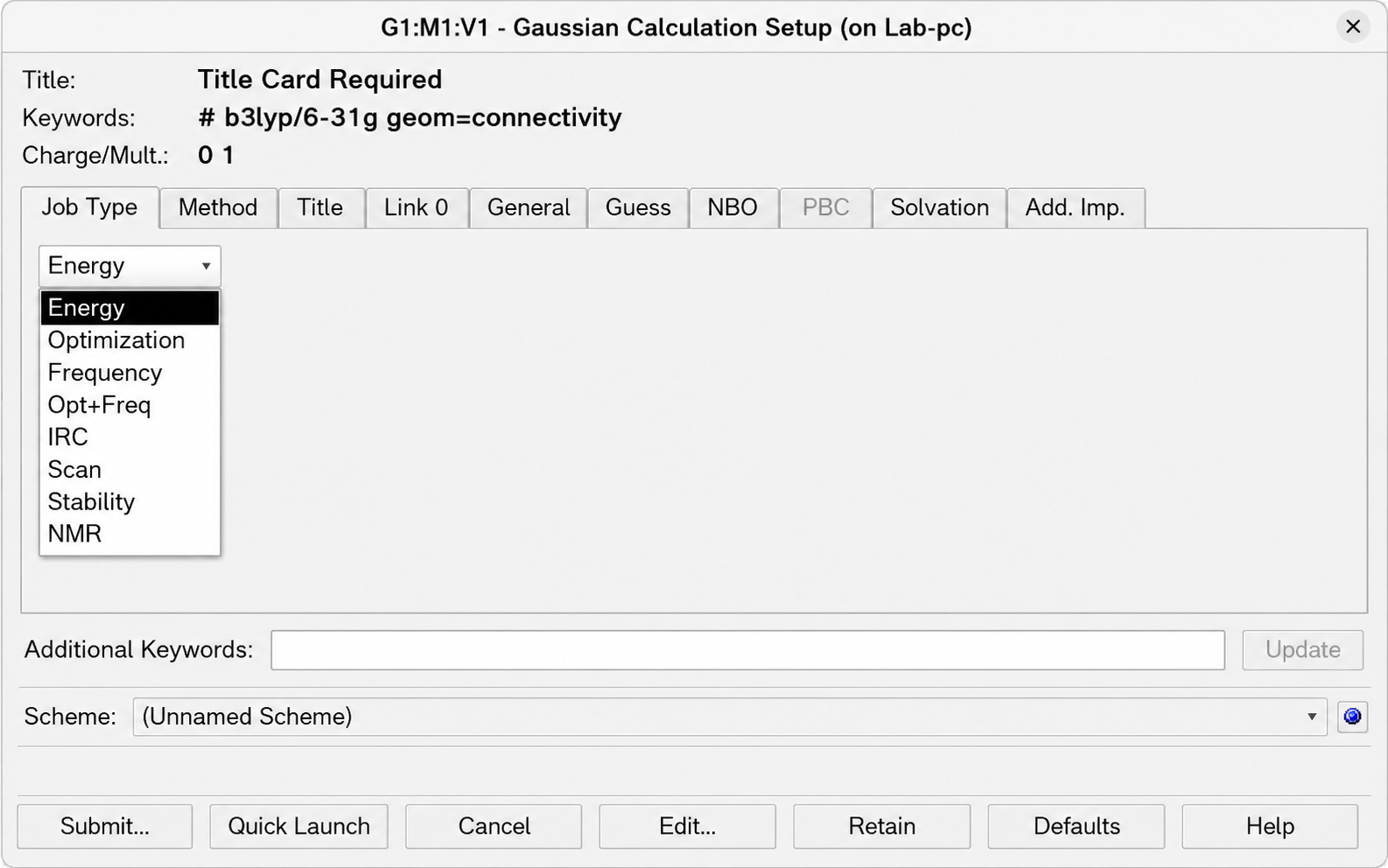
The setup window is divided into several tabs, each controlling a different aspect of the calculation.
| Tab | Purpose |
|---|---|
| Job Type | Select the type of calculation to perform |
| Method | Choose the electronic structure method and basis set |
| Title | Provide a descriptive title for the calculation |
| Link 0 | Specify memory, processors, checkpoint file, and other execution options |
| General | General Gaussian settings |
| Guess | Control the initial molecular orbital guess |
| NBO | Natural Bond Orbital analysis |
| PBC | Periodic boundary condition calculations |
| Solvation | Implicit solvent models |
| Add. Imp. | Additional implementation-specific keywords |
For most routine calculations, only the Job Type, Method, and Link 0 tabs need to be modified.
Selecting the Job Type
The Job Type determines what Gaussian will calculate.
The available job types include
| Job Type | Purpose |
|---|---|
| Energy | Compute the electronic energy of the current molecular geometry. |
| Optimization | Optimize the molecular geometry to a stationary point. |
| Frequency | Compute vibrational frequencies and thermochemical properties. |
| Opt + Freq | Perform geometry optimization followed immediately by a frequency calculation. |
| IRC | Follow the intrinsic reaction coordinate from a transition state. |
| Scan | Scan one or more internal coordinates to generate a potential energy surface. |
| Stability | Test whether the converged wavefunction corresponds to a stable SCF solution. |
| NMR | Compute magnetic shielding tensors and NMR chemical shifts. |
Each of these calculation types will be discussed in detail in subsequent chapters.
In optimization there are several options available..
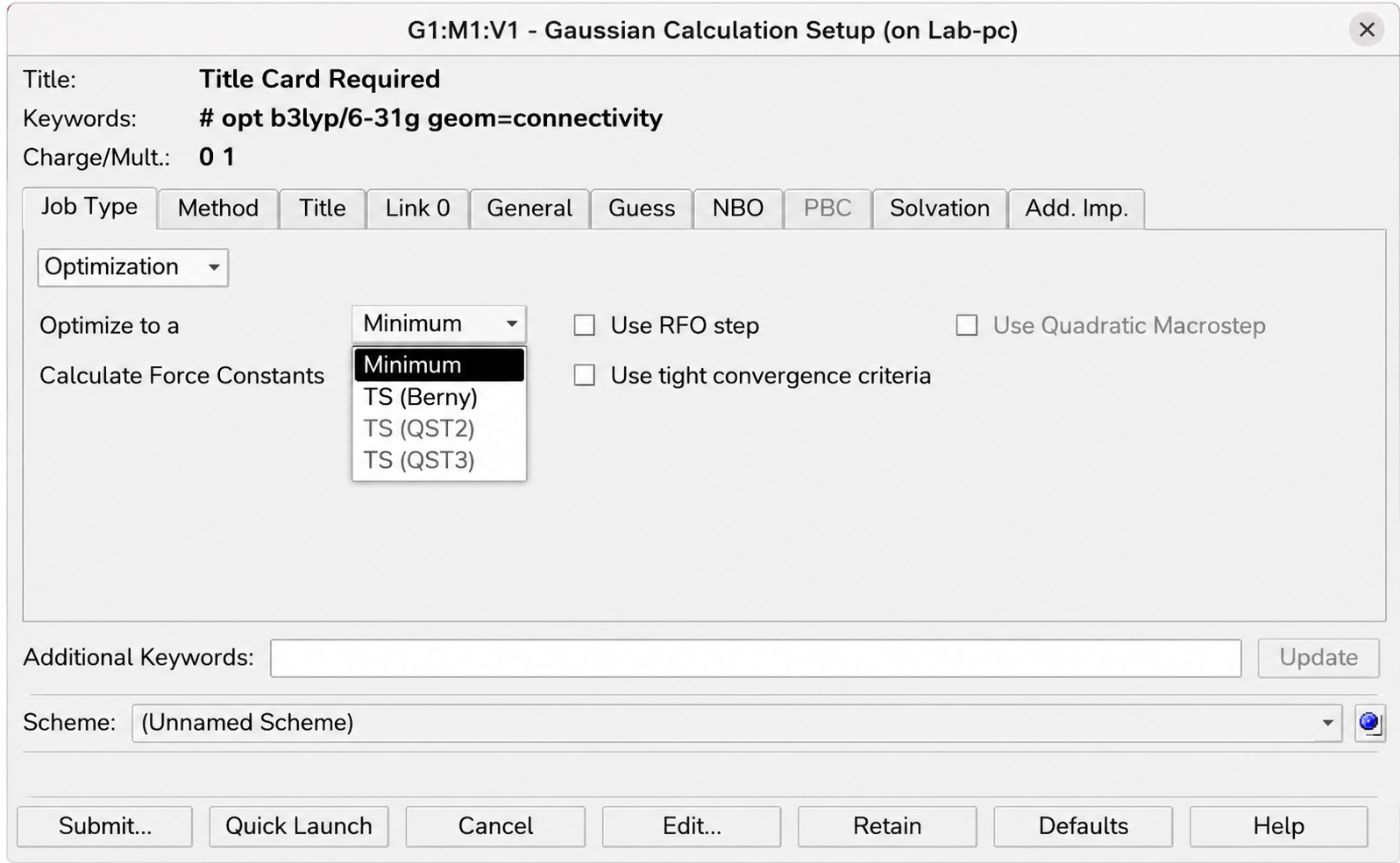
Each of these has its own routine and significance which can be found here.
Choosing the Computational Method
The Method tab allows the user to specify
- Electronic structure method
- Basis set
- Spin treatment
- Dispersion corrections
- Solvation models (if required)
Examples of commonly used methods include
- Hartree–Fock (HF)
- Density Functional Theory (DFT)
- MP2
- TD-DFT
Similarly, common basis sets include
- STO-3G
- 3-21G
- 6-31G
- 6-31G(d)
- 6-311++G(d,p)
- cc-pVDZ
- cc-pVTZ
The choice of computational method depends on the desired balance between computational cost and accuracy. Method selection will be discussed in later tutorials.
Charge and Multiplicity
Every Gaussian calculation requires specifying the molecular charge and spin multiplicity.
Examples include
| System | Charge | Multiplicity |
|---|---|---|
| Neutral closed-shell molecule | 0 | 1 |
| Cation | +1 | 1 or 2 |
| Anion | –1 | 1 or 2 |
| Radical | 0 | 2 |
For most molecules encountered in introductory calculations, the default values are
Additional Keywords
The Additional Keywords field allows experienced users to manually add Gaussian route keywords that are not directly available through the graphical interface.
Examples include
For beginners, this field can usually be left empty.
Link 0 Commands
The Link 0 tab controls how Gaussian utilizes the available hardware.
Typical options include
- Number of processors
- Memory allocation
- Checkpoint file
- Scratch file options
A typical Link 0 section generated by GaussView may appear as
These settings influence the computational resources available to Gaussian but do not affect the underlying quantum chemical method.
Submitting the Calculation
Once all settings have been specified,
- Review the selected calculation parameters.
- Click Submit.
- Choose the directory where the calculation should be saved.
- Enter an appropriate filename.
- Start the Gaussian calculation.
GaussView automatically generates the Gaussian input file (.gjf or .com) and launches the Gaussian executable.
Monitoring the Calculation
During execution, Gaussian writes its progress to an output file.
Depending on the selected calculation, this process may take from a few seconds to several hours.
Upon completion, the output file can be opened directly in GaussView for visualization and analysis.
Next Steps
Now that you know how to prepare and submit a Gaussian job, the following chapters explain each calculation type individually.
The remaining tutorials will cover
- Single Point Energy
- Geometry Optimization
- Frequency Calculation
- Optimization + Frequency
- Intrinsic Reaction Coordinate (IRC)
- Coordinate Scan
- NMR Calculations
- Stability Analysis
Each chapter will explain the theoretical background, required inputs, interpretation of the output, and practical examples.