Preparing the Calculation in GaussView
Once the molecular structure has been constructed and verified, the next step is to prepare a Single Point Energy calculation. GaussView provides a graphical interface that automatically generates the corresponding Gaussian input file, eliminating the need to manually write Gaussian keywords.
In this tutorial, we use the formic acid dimer as the example molecule. The same procedure applies to any molecular system.
Opening the Gaussian Calculation Setup
After opening or drawing the molecule in GaussView,
- Click Calculate from the menu bar.
- Select Gaussian Calculation Setup.
The Gaussian Calculation Setup window will appear, allowing all computational parameters to be specified before submitting the calculation.
Selecting the Job Type
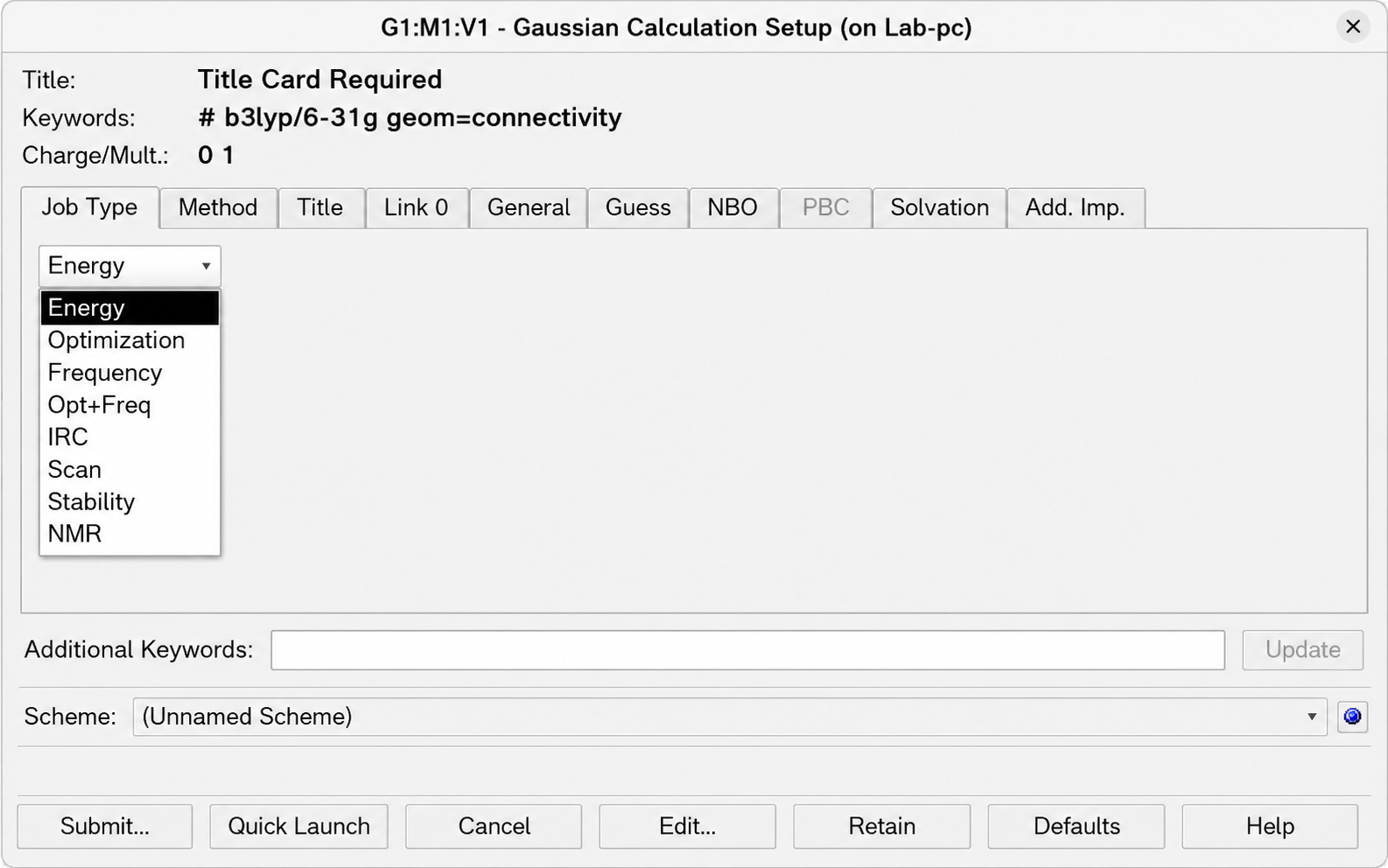
In the Job Type tab,
- Select Energy from the drop-down menu.
This instructs Gaussian to calculate the electronic energy of the supplied molecular geometry without performing any geometry optimization.
Choosing the Computational Method
Select the Method tab.
For this example, choose
| Option | Selection |
|---|---|
| Method | B3LYP |
| Basis Set | 6-31G |
| Spin | Restricted |
These settings correspond to the Gaussian route section
which specifies the electronic structure method used for the calculation.
Setting Charge and Multiplicity
For the neutral formic acid dimer,
| Property | Value |
|---|---|
| Charge | 0 |
| Multiplicity | 1 |
These values appear near the top of the Gaussian Calculation Setup window.
Title
Select the Title tab and enter a descriptive title for the calculation.
For example,
Although the title does not affect the calculation, using meaningful titles makes it easier to identify calculations later.
Link 0 Settings
Open the Link 0 tab.
Specify the computational resources that Gaussian should use.
For this example,
| Parameter | Value |
|---|---|
| Number of Shared Processors | 1 |
| Memory | 2 GB |
| Checkpoint File | formicacid-opt-energy.chk |
These options generate the Link 0 commands
which appear at the beginning of the Gaussian input file.
Additional Keywords
No additional keywords are required for a basic single-point energy calculation.
Therefore, leave the Additional Keywords field empty.
Reviewing the Calculation
Before submitting the job, verify that the following settings have been selected.
| Parameter | Value |
|---|---|
| Job Type | Energy |
| Method | B3LYP |
| Basis Set | 6-31G |
| Charge | 0 |
| Multiplicity | 1 |
| Memory | 2 GB |
| Processors | 1 |
The generated route section should resemble
Submitting the Calculation
After confirming all settings,
- Click Submit.
- Select the directory where the calculation will be saved.
- Specify an appropriate filename.
- Click Save to generate the Gaussian input file and launch the calculation.
GaussView automatically creates the corresponding Gaussian input (.gjf or .com) file and starts the Gaussian executable.
Next Section
In the next section, we will examine the Gaussian input file generated by GaussView and explain the purpose of each part of the input in detail.